API category list
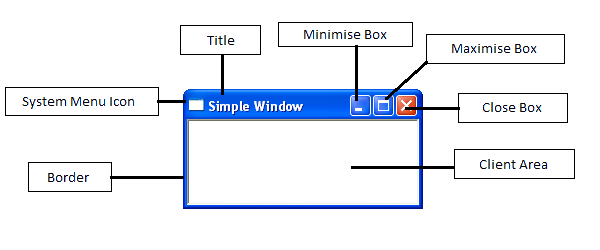
The simple windows program below creates a very basic window with a system menu icon, a minimise, maximise and close box. It can be compiled in either C or C++.
- #include <windows.h>
- LRESULT CALLBACK WndProc(HWND, UINT, WPARAM, LPARAM);
- int WINAPI WinMain(HINSTANCE hInstance, HINSTANCE hPrevInstance,LPSTR lpCmdLine, int nCmdShow)
- {
- WNDCLASSEX wc;
- MSG msg;
- //Registering the Window Class
- wc.cbSize = sizeof(WNDCLASSEX);
- wc.style = 0;
- wc.lpfnWndProc = WndProc;
- wc.cbClsExtra = 0;
- wc.cbWndExtra = 0;
- wc.hInstance = hInstance;
- wc.hIcon = LoadIcon(NULL, IDI_APPLICATION);
- wc.hCursor = LoadCursor(NULL, IDC_ARROW);
- wc.hbrBackground = (HBRUSH)(COLOR_WINDOW+1);
- wc.lpszMenuName = NULL;
- wc.lpszClassName = TEXT("myWindowClass");
- wc.hIconSm = LoadIcon(NULL, IDI_APPLICATION);
- RegisterClassEx(&wc);
- //Creating the Window
- CreateWindowEx(WS_EX_CLIENTEDGE,TEXT("myWindowClass"),TEXT("Simple Window"), WS_VISIBLE | WS_OVERLAPPEDWINDOW,CW_USEDEFAULT, CW_USEDEFAULT, 240, 120, NULL, NULL, hInstance, NULL);
- //The Message Loop
- while(GetMessage(&msg, NULL, 0, 0) > 0)
- {
- TranslateMessage(&msg);
- DispatchMessage(&msg);
- }
- return msg.wParam;
- }
- //WndProc procedure. Application acts on messages
- LRESULT CALLBACK WndProc(HWND hwnd, UINT msg, WPARAM wParam, LPARAM lParam)
- {
- switch(msg)
- {
- case WM_CLOSE:
- DestroyWindow(hwnd);
- break;
- case WM_DESTROY:
- PostQuitMessage(0);
- break;
- default:
- return DefWindowProc(hwnd, msg, wParam, lParam);
- }
- return 0;
- }
Line 1 – All Windows programs must include the header file <windows.h>. This contains declarations for all of the functions in the Windows API, all the common macros used by Windows programmers, and all the data types used by the various functions and subsystems.
Line 2 – Function declaration for CALLBACK function WndProc.
Line 3 – WinMain function. Marks the program entry point.
Line 5 – Declares the wc structure variable that defines the Window’s class.
Line 6 – Declares the msg structure variable for holding Windows messages.
Lines 8 to 19 – Defines the Window’s class
Line 20 – Registers Windows class using the function RegisterClassEx.
Line 22 – Once a Window has been defined and registered it is created using the API function CreateWindowEx.
Lines 24 to 30 – The final part of WinMain is the message loop. The purpose of the message loop is to receive and process messages sent from windows. Once the message loop terminates the value of msg.wParam is returned to Windows.
Line 32 to 46 – The WndProc procedure is used by Windows to pass messages to an application. In this instance, only the WM_DESTROY & WM_CLOSE message is explicitly processed.
- Details
- Category: API category list
- Hits: 1900
WinMain
All Windows programs begin execution with a call to WinMain(). WinMain is the Windows equivalent of the C function main() and serves as the primary entry point for any Win32-based application. It contains the code required to initialise and register the application, create and display its main window, and enter the message retrieval and dispatch loop.
The prototype of this function is as follows:
int WINAPI WinMain(HINSTANCE hInstance, HINSTANCE hPrevInstance, PWSTR pCmdLine, int nCmdShow);
The four parameters are:
hInstance – A handle to the current instance of the application. The operating system uses this value to identify the executable (EXE) when it is loaded into memory.
hPrevInstance – Used in 16-bit applications to provide a handle to the previous application instance. In a Win32-based application, this parameter is always NULL and has no meaning.
pCmdLine – A pointer to a null-terminated string used to pass command-line parameters to Windows programs.
nCmdShow – A flag that specifies whether the main application window is minimised, maximised, or shown normally.
The function returns an int value. Although the operating system does not utilise this value, it can convey a status code to another program.
Defining and Registering the Windows Class
The Windows class structure WNDCLASSEX contains information relating to the behaviour and appearance of a window. The syntax of the WNDCLASSEX structure is as follows:
typedef struct _WNDCLASSEX
{
    UINT cbSize;             // size of this structure
    UINT style;              // style flags
    WNDPROC lpfnWndProc;     // pointer to the window callback procedure
    int cbClsExtra;          // extra window-class info (usually 0)
    int cbWndExtra;          // extra window info (usually 0)
    HANDLE hInstance;        // instance of the application
    HICON hIcon;             // main application icon
    HCURSOR hCursor;         // cursor for the window
    HBRUSH hbrBackground;    // background brush
    LPCTSTR lpszMenuName;    // name of the menu, if any
    LPCTSTR lpszClassName;   // name of the registered class
    HICON hIconSm;           // handle to the small icon
} WNDCLASSEX;
style – Specifies the class style(s). Styles can be combined by using the bitwise OR (|) operator. The style can be any combination of the following: CS_BYTEALIGNCLIENT, CS_BYTEALIGNWINDOW, CS_CLASSDC, CS_DBLCLKS, CS_GLOBALCLASS, CS_HREDRAW, CS_NOCLOSE, CS_OWNDC, CS_PARENTDC, CS_SAVEBITS, CS_VREDRAW.
RegisterClassEx – Before a window can be displayed on the screen, its window class must be registered. RegisterClassEx() takes a pointer to a WNDCLASSEX structure. The registered class name is later used when calling CreateWindowEx().
In addition to the WNDCLASSEX structure, a window can be registered using the deprecated WNDCLASS structure and the associated RegisterClass function. The main difference between the two is that WNDCLASSEX includes a size member and an additional member that specifies a handle to a small icon for the window.
Windows also provides a standard set of predefined child window classes, which can be used to implement the functionality of common controls.
CreateWindow
A window is created by a call to the CreateWindowEx() or CreateWindow() function. CreateWindowEx differs from CreateWindow in that it uses an extended window style. The prototype for this function is:
HWND CreateWindowEx(
    DWORD dwExStyle,
    LPCTSTR lpClassName,
    LPCTSTR lpWindowName,
    DWORD dwStyle,
    int x,
    int y,
    int nWidth,
    int nHeight,
    HWND hwndParent,
    HMENU hmenu,
    HANDLE hinst,
    LPVOID lpvParam
);
The parameter description is as follows:
DWORD dwExStyle – Defines the extended window style.
LPCTSTR lpClassName – A pointer to a null-terminated string containing the predefined control class name. The class name can be registered using RegisterClass or RegisterClassEx, or it can be one of the predefined classes used to create child controls.
LPCTSTR lpWindowName – A pointer to a null-terminated string that specifies the window name.
DWORD dwStyle – Indicates the style of the window to be created. The style consists of values combined using the | operator.
int x – The horizontal position of the window.
int y – The vertical position of the window.
int nWidth – The width of the window.
int nHeight – The height of the window.
HWND hwndParent – A handle to the parent or owner window. A NULL value is used if there is no parent window.
HMENU hMenu – A handle to the menu, or a child-window identifier.
HINSTANCE hInst – A handle to the application instance.
LPVOID lpvParam – A pointer to additional data passed to the window during creation.
The function returns a handle to the new window or NULL if it fails.
Message Loop
A Windows program is event-driven. This means that program flow is determined by a continuous stream of notifications generated by the system or by users, such as a key press, mouse click, or application change. Each of these events is converted into a message. Windows creates a message queue for every running application. The application, in turn, contains a small message loop that retrieves these queued messages and dispatches them back to the window.
Windows, by way of a message handler, then identifies and calls the appropriate window procedure, WndProc(), passing the message as one of its parameters. Each time the application is ready to read a message, it must call the API function GetMessage(). The prototype for the GetMessage function is:
BOOL GetMessage(
    LPMSG lpMsg,        // pointer to MSG structure
    HWND hWnd,          // window whose messages are retrieved
    UINT wMsgFilterMin, // first message
    UINT wMsgFilterMax  // last message
);
Inside the message loop, there are two functions:
TranslateMessage() – This Windows API call translates virtual-key messages into character messages.
DispatchMessage() – Dispatches the message to the appropriate window procedure.
What is a Message?
Messages are represented by the MSG structure and have the following format:
typedef struct tagMSG
{
    HWND hwnd;      // window whose procedure receives the message
    UINT message;   // message number
    WPARAM wParam;  // additional message-specific information
    LPARAM lParam;  // additional message-specific information
    DWORD time;     // time at which the message was posted
    POINT pt;       // cursor position when the message was posted
} MSG;
SendMessage Function
The SendMessage() API function allows specified messages to be sent to a window by directly calling the window procedure associated with that window. The prototype for the SendMessage function is:
LRESULT SendMessage(
    HWND hWnd,
    UINT Msg,
    WPARAM wParam,
    LPARAM lParam
);
Where:
HWND hWnd – A handle to the window whose window procedure will receive the message. If this parameter is set to HWND_BROADCAST, the message is sent to all top-level windows in the system, including those that are disabled or invisible.
UINT Msg – The message to be sent.
WPARAM wParam – Holds additional, message-specific information.
LPARAM lParam – Holds additional, message-specific information.
The return value specifies the result of the message processing and will depend on the message sent.
Windows Procedure
The Windows procedure WndProc() is used by a Windows application to process messages until the application is terminated. Each application window must have a WndProc declaration with the return type LRESULT and the calling convention CALLBACK. In Windows, a callback function is any function that is invoked by the operating system.
Although the system generates hundreds of different messages, an application typically needs to filter and process only a small fraction of them. In our simple window, WndProc calls DefWindowProc() to ensure default processing for messages that the application does not handle.
The prototype of WndProc is:
LRESULT CALLBACK WindowProc(
    HWND hwnd,
    UINT uMsg,
    WPARAM wParam,
    LPARAM lParam
);
The four parameters are:
HWND hwnd – A handle to the window to which the message was sent.
UINT uMsg – Specifies the message.
WPARAM wParam – Specifies additional message-specific information.
LPARAM lParam – Specifies additional message-specific information.
- Details
- Category: API category list
- Hits: 1171
The Windows API does not rely primarily on the standard C/C++ data types. Instead, it defines its own collection of data types using typedef declarations in the windows.h header file. While many Win32 data types are available, only a relatively small number are used in most Windows applications. The most important of these are listed below.
Basic Integer Types:
BOOL – Boolean value (TRUE or FALSE)
INT – A 32-bit signed integer. Normal C-style integer. Declared as typedef int INT;
UINT – A 32-bit unsigned integer. Declared as typedef unsigned int UINT;
DWORD – A 32-bit unsigned integer. Windows system/hardware terminology
LONG - A 32-bit signed integer
BYTE – The same as unsigned char. Declared as typedef unsigned char BYTE;
Handles:
A handler is an identifier that refers to an internal Windows object.
HINSTANCE – A handle to the application instance.
HDC – A device context handle
HMENU – A handle to a menu.
HFONT – A handle to a font.
HBITMAP – A handle to a bitmap.
HBRUSH – A handle to a brush.
String Types (Modern Usage)
LPCWSTR – pointer to a constant null-terminated UTF-16 string.
LPWSTR – A 32-bit pointer to a string of 16-bit Unicode characters, which may be null-terminated.
LPCTSTR – An LPCWSTR if UNICODE is defined, or an LPCSTR otherwise. Now depreciated still exists for backward compatibility
LPTSTR – An LPWSTR if UNICODE is defined, or an LPSTR otherwise. Now depreciated still exists for backward compatibility.
TCHAR – A WCHAR if UNICODE is specified, or a CHAR otherwise. Now depreciated still exists for backward compatibility
For a full list of Windows data types
https://docs.microsoft.com/en-us/windows/win32/winprog/windows-data-types
Identifier Constants
Windows programs make extensive use of named constants, often referred to as identifiers, to represent numerical values. These identifiers are usually written in uppercase and consist of a two- or three-letter prefix that identifies the category, followed by an underscore and a descriptive constant name. Some of the most common prefixes and their associated message types are listed below.
| Prefix | Description | Example |
| CS | Class style | CS_HREDRAW | CS_VREDRAW |
| CW | Create window | CW_USEDEFAULT CW_USEDEFAULT |
| DT | Draw text | DT_CENTER DT_LEFT DT_RIGHT |
| IDI | Icon identifier | IDI_ASTERISK IDI_ERROR IDI_HAND |
| IDC | Cursor identifier | IDC_ARROW IDC_HAND |
| MB | Message box options | MB_HELP MB_OK MB_OKCANCEL |
| SND | Sound option | SND_ASYNC SND_NODEFAULT |
| WM | Window message | WM_NULL WM_CREATE WM_DESTROY |
| WS | Window style | WS_OVERLAPPED WS_SYSMENU WS_BORDER |
Naming conventions
Microsoft traditionally used a naming convention known as Hungarian notation. In this convention, variables are prefixed with a short, lowercase abbreviation indicating their data type, followed by a descriptive name beginning with a capital letter. Function names do not use type prefixes and instead begin with a capital letter. Although modern C++ code often favours more descriptive naming conventions, Hungarian notation is still widely encountered in Win32 API programming and older Microsoft code.For further reading on MS coding style conventions
https://docs.microsoft.com/en-us/windows/win32/stg/coding-style-conventions
Character sets
Computers store text and numbers as patterns of binary digits called character codes. To ensure that information can be exchanged reliably between different computers and applications, a standard is required to define the code assigned to each character. A complete collection of characters and their corresponding codes is called a character set. The two most common character sets are ASCII and Unicode. While ASCII remains important for compatibility and legacy systems, Unicode has become the standard for modern software because it supports a vastly larger range of characters and writing systems.
ASCII
ASCII is a character encoding system that can represent 128 characters. It uses 7 bits to represent each character since the first bit of the byte is always 0. The code set allows 95 printable characters and 33 non-printable Control characters.
Extended ASCII
Standard ASCII uses 7 bits to represent 128 characters, which is sufficient for the English alphabet, digits, punctuation, and control characters. However, it cannot represent the accented letters and special symbols required by many other languages.
Extended ASCII uses 8 bits, allowing up to 256 characters. Various extended ASCII encodings were developed to include additional accented characters and symbols for different languages. However, because there was no single universal extended ASCII standard, different code pages assigned different characters to the same values, leading to compatibility problems.
Although extended ASCII doubled the number of available characters, it still could not represent all of the world's writing systems. As a result, it has largely been superseded by Unicode, which provides a universal character encoding capable of representing virtually every written language.
UNICODE
The Unicode Standard is a universal character-encoding standard designed to represent the characters and symbols used in virtually every written language. Each character is assigned a unique numerical value known as a code point.
A Unicode Transformation Format (UTF) defines how Unicode code points are encoded as sequences of bytes for storage and transmission. The two most widely used Unicode encoding formats are UTF-8 and UTF-16.
UTF-8 is a variable-length encoding that uses between 1 and 4 bytes to represent each character. The first 128 Unicode code points are identical to those used by ASCII, making UTF-8 fully backward compatible with ASCII. This compatibility has contributed to UTF-8 becoming the dominant encoding for web pages, e-mail, and many modern applications.
UTF-16 is also a variable-length encoding, using either 2 or 4 bytes to represent a character. Unlike UTF-8, it is not directly compatible with ASCII because even ASCII characters are stored using 16-bit code units. Windows stores Unicode text internally using UTF-16 Little Endian (UTF-16LE), while older Windows applications may still use legacy ANSI code pages for non-Unicode text.
Unicode in the Windows API
Unicode has been the native character encoding used by Windows since Windows NT. Most Windows API functions that accept or return text are provided in three forms:
- ANSI version, with an
Asuffix (for example,CreateWindowExA) - Unicode version, with a
Wsuffix (for example,CreateWindowExW) - Generic version, with no suffix (for example,
CreateWindowEx)
The generic function name is a macro defined in the Windows header files. At compile time, it is automatically mapped to either the ANSI or Unicode version, depending on whether the UNICODE preprocessor symbol is defined. In modern Windows applications, UNICODE is normally enabled by default, so generic function names are resolved to their Unicode (W) equivalents.
Working with Strings
C++ provides four built-in character types: char, wchar_t, char16_t, and char32_t.
The char type is an 8-bit character type commonly used to store ASCII text, UTF-8 encoded text, or characters from a system code page. The wchar_t type is intended for wide characters. Its size is implementation-dependent; on Windows it is 16 bits and is used to represent UTF-16 encoded text, whereas on many other platforms it is 32 bits.
C++11 introduced the fixed-width character types char16_t and char32_t to represent UTF-16 and UTF-32 code units respectively. Because these types have a fixed size on all platforms, they are preferable when writing portable Unicode code. However, when programming the Win32 API, wchar_t remains the standard character type used by Unicode functions.
String literals are prefixed to indicate the type of character string they contain:
char *ascii_example = "This is an ASCII string.";

wchar_t *Unicode_example = L"This is a wide char string.";
char16_t * char16_example = u"This is a char16_t Unicode string.";
c
har32_t * char32_example = U"This is a char32_t Unicode string.";
TCHAR and the TEXT Macro
To simplify the development of applications that could be compiled for either ANSI or Unicode, Microsoft introduced the generic character type TCHAR. When the UNICODE preprocessor symbol is defined, TCHAR maps to wchar_t; otherwise, it maps to char. This allows the same source code to be compiled in either mode without modification.
To complement TCHAR, Microsoft also provides the TEXT() (or _T()) macro. This macro prefixes string literals appropriately so that they are treated as either ANSI or Unicode strings, depending on the compilation settings.
For example:
TCHAR* autoString = TEXT("This message can be either ANSI or Unicode!");
When compiled in Unicode mode, the statement above is equivalent to:
wchar_t* autoString = L"This message can be either ANSI or Unicode!";
When compiled in ANSI mode, it becomes:
char* autoString = "This message can be either ANSI or Unicode!";
Today, TCHAR and the TEXT() macro are generally regarded as legacy features. Modern Windows applications are developed using Unicode (UTF-16), and it is now common practice to use wchar_t and wide-character string literals (L"...") directly. Nevertheless, TCHAR and TEXT() remain fully supported and are still encountered in older Win32 codebases.
For further information on working with strings and character encoding in the Windows API, see:https://docs.microsoft.com/en-us/windows/win32/learnwin32/working-with-strings
- Details
- Category: API category list
- Hits: 642
A device context (DC) is a Windows data structure that contains information about the drawing attributes and capabilities of an output device. These attributes include settings such as the current pen, brush, font, text alignment, mapping mode, and drawing colours.
When an application needs to draw output to a device such as the screen or a printer, it must first obtain a handle to a device context (HDC). Windows provides this handle and associates it with the target device. The drawing functions in the Windows API then use the information stored in the device context to determine how output should be rendered.
The process of sending graphical output to a window is known as painting.
A window may need to be painted or repainted when it is first created, resized, restored, or whenever part of its client area becomes invalid. In versions of Windows prior to Vista, this commonly occurred when a window that had been partially covered by another window became visible again. Modern versions of Windows use desktop composition, which reduces the need for repainting.
Usually, an application is responsible only for painting the client area of a window. The client area is the rectangular region inside the window's borders where the application's content is displayed. It does not include non-client areas such as the title bar, window frame, menus, system menu, or scroll bars.
The operating system is responsible for drawing and managing the non-client areas of a window, including the title bar and borders.
System Generated Repaint Requests
Windows does not maintain a permanent copy of an application's window contents. When all or part of a window's client area becomes invalid—for example, because the window has been resized, restored, uncovered, or explicitly invalidated—Windows sends the application a WM_PAINT message to indicate that the affected area must be redrawn.
The portion of the client area that requires repainting is known as the update region (or invalid region). Windows maintains the size and coordinates of this region for each window so that only the affected area needs to be repainted.
BeginPaint()
The BeginPaint() function is called in response to a WM_PAINT message to prepare a window for repainting. It returns a handle to a device context (DC) that is valid only for painting the window's client area and fills a PAINTSTRUCT structure with information about the update region.
The PAINTSTRUCT includes a rectangle (rcPaint) that identifies the portion of the client area requiring repainting, allowing the application to redraw only the necessary area rather than the entire window. Before control is returned to the application, BeginPaint() also erases the background of the update region if the window class specifies a background brush.
After repainting has been completed, the application must call EndPaint(). This function releases the painting device context and validates the update region, informing Windows that the repaint request has been completed.
If an application fails to call EndPaint(), or otherwise leaves the update region invalid, Windows will continue to generate WM_PAINT messages resulting in what appears to be an endless repaint cycle.
The prototype of the BeginPaint function is as follows:
HDC BeginPaint(HWND hwnd, LPPAINTSTRUCT lpPaint);Where:
- hwnd is the handle of the window for which the device context is being obtained.
- lpPaint is a pointer to a PAINTSTRUCT structure.
If the function is successful, its return value is the device context. If it fails, the return value is NULL.
The prototype of PAINTSTRUCT is as follows:
typedef struct tagPAINTSTRUCT {
    HDC hdc;
    BOOL fErase;
    RECT rcPaint;
    BOOL fRestore;
    BOOL fIncUpdate;
    BYTE rgbReserved[16];
} PAINTSTRUCT;
Only 3 parameters are available to the user application; the rest are filled in by Windows when the user application calls BeginPaint. The hdc field is the handle to the device context returned from BeginPaint, fErase specifies whether the background needs to be redrawn, and rcPaint specifies the upper left and lower right corners of the rectangle in which the painting is requested.
The EndPaint() function is required for each call to the BeginPaint function to validate the client after the screen painting is complete. It has the following syntax:
BOOL EndPaint(HWND hwnd, const PAINTSTRUCT *lpPaint);Where hwnd is the handle to the window that has been repainted and lpPaint is a pointer to a PAINTSTRUCT structure. The return value is always nonzero.
Other Device Context-Related API Functions
GetDC()
The GetDC() function retrieves a handle to a display device context (DC) for the client area of a specified window or, if required, for the entire screen. Unlike BeginPaint(), which is used only in response to a WM_PAINT message, GetDC() can be called at any time when an application needs to draw immediately.
Typical uses include drawing in response to mouse or keyboard input, displaying temporary graphics, or obtaining information about the display device. Since GetDC() is not associated with the window's update region, it allows drawing anywhere within the window's client area.
The prototype for this function is:
HDC GetDC(HWND hWnd);Where hWnd is a handle to the window whose device context is required. If this value is NULL, GetDC() retrieves the device context for the entire screen. If the function succeeds, the return value is a handle to the device context for the specified window's client area. If the function fails, the return value is NULL.
GetWindowDC()
The GetWindowDC() function is similar to GetDC(), but it retrieves a device context (DC) for the entire window, including both the client area and the non-client area. The non-client area includes the title bar, window frame, scroll bars, and any other window decorations managed by the operating system.
Unlike GetDC(), whose coordinate origin is the upper-left corner of the client area, the device context returned by GetWindowDC() has its origin at the upper-left corner of the entire window. This allows an application to draw anywhere within the window, including the non-client area.
Like GetDC(), the device context obtained from GetWindowDC() must be released by calling ReleaseDC() when it is no longer required.
In modern Windows applications, GetWindowDC() is used relatively infrequently because the operating system is responsible for painting most non-client areas. It is typically used only by applications that need to customize the appearance of the window frame or other non-client elements.
The prototype for this function is:
HDC GetWindowDC(HWND hWnd);Where hWnd is a handle to the window whose device context is required. If this value is NULL, GetWindowDC() retrieves the device context for the entire screen. If the function succeeds, the return value is a handle to the device context for the specified window. If the function fails, the return value is NULL.
ReleaseDC()
The ReleaseDC() function releases a device context (DC) that was obtained by calling either GetDC() or GetWindowDC(). Releasing the device context returns it to the operating system so that it can be reused by other applications.
The prototype for this function is:
int ReleaseDC(HWND hWnd, HDC hdc);Where hWnd is a handle to the window whose device context is to be released, and hdc is the device context to be released. The return value indicates whether the device context was released successfully, with a value of 1 indicating success and 0 indicating failure.
ValidateRect()
Allows an application to validate a Windows region manually. The prototype for this function is:
BOOL ValidateRect(HWND hWnd, const RECT *lpRect);Where:
- hWnd is a handle to the window.
- lpRect is a pointer to a RECT structure that contains the client coordinates of the rectangle to be removed from the update region.
If the hWnd parameter is NULL, the system invalidates and redraws the entire window. If the RECT structure is NULL, the entire client area is removed from the update rectangle. If the function is successful, the return value is nonzero. If the function fails, the return value is zero.
InvalidateRect()
Allows an application to invalidate a Windows region manually and tells Windows to repaint that region.
The prototype for this function is:
BOOL InvalidateRect(HWND hWnd, const RECT *lpRect, BOOL bErase);Where:
- hWnd is a handle to the window that needs to be updated. If this parameter is NULL, the system invalidates and redraws all windows, not just the windows for this application.
- lpRect is a pointer to a RECT structure containing the client coordinates of the update region. If the parameter is NULL, the entire client area is set for update.
- bErase specifies whether the background within the update region is to be erased when the update region is processed. If this parameter is TRUE, the background is erased when the BeginPaint function is called. If this parameter is FALSE, the background remains unchanged.
If the function is successful, the return value is nonzero. If the function fails, the return value is zero.
SaveDC and RestoreDC
During a drawing operation, an application often changes the attributes of a device context by selecting different pens, brushes, fonts, colours, mapping modes, or clipping regions. If the original settings need to be restored later, the current state of the device context can be saved by calling the SaveDC() function.
SaveDC() stores the complete state of the device context on an internal stack and returns an integer identifying the saved state. The application can then modify the device context as required. When drawing has been completed, the original settings can be restored by calling RestoreDC().
Using SaveDC() and RestoreDC() allows an application to make temporary changes to a device context without having to save and restore each attribute individually. This simplifies drawing code and ensures that the device context is returned to its original state before further drawing operations are performed.
Example
The following program demonstrates the WM_PAINT message by keeping a running total of client area repaints. Clicking the minimise and maximise icons or resizing the window will generate a repaint request.
- Details
- Category: API category list
- Hits: 620
The Graphics Device Interface (GDI) is the Windows graphics subsystem used to draw graphics and formatted text on display devices such as monitors and printers. One of its primary objectives is to provide a device-independent programming environment, allowing applications to produce the same output on different types of devices without requiring device-specific code.
GDI provides several hundred functions for drawing points, lines, rectangles, polygons, ellipses, bitmaps, and text. It also provides graphics objects, such as pens, brushes, and fonts, which control the appearance of the output. A pen defines the colour, width, and style of lines and outlines, while a brush determines how enclosed shapes are filled.
A device context (DC) always has a pen, brush, font, and other graphics attributes selected into it. When an application needs to change one of these attributes, it must first create the required GDI object and then select it into the device context. Any drawing performed after the new object has been selected uses the new attributes. Previously drawn graphics are unaffected.
Each GDI object created by an application consumes Windows system resources. To avoid resource leaks, applications should delete GDI objects using DeleteObject() when they are no longer required. Before deleting a GDI object, the original object should first be reselected into the device context, as an object that is currently selected into a device context must not be deleted.
Creating Pens
Pens are created and referred to by using the handle type HPEN. In addition to a limited number of pre-supplied stock pens, the programmer can define user-defined pens using the API function CreatePen(). The prototype of this function is:
HPEN CreatePen(int iStyle, int cWidth, COLORREF color);where:
- iStyle – The pen style. It can be any one of the following values:
PS_SOLID– The pen is solid.PS_DASH– The pen is dashed. This style is valid only when the pen width is one or less in device units.PS_DOT– The pen is dotted. This style is valid only when the pen width is one or less in device units.PS_DASHDOT– The pen has alternating dashes and dots. This style is valid only when the pen width is one or less in device units.PS_DASHDOTDOT– The pen has alternating dashes and double dots. This style is valid only when the pen width is one or less in device units.PS_NULL– The pen is invisible.PS_INSIDEFRAME– The pen is solid. When this pen is used in a GDI drawing function that takes a bounding rectangle, the figure dimensions are shrunk so that the figure fits entirely within the bounding rectangle, taking the pen width into account. This applies only to geometric pens.
- cWidth – The width of the pen, in logical units. If the width is zero, the pen is one pixel wide, regardless of the current transformation.
- color – A
COLORREFvalue that determines the pen colour.
If the function succeeds, the return value identifies a logical pen. If the function fails, the return value is NULL.
Creating a Brush
Brushes are used to fill closed graphical objects. A brush has a colour and style, and it can also be defined using a bitmap pattern. Brushes are created and referred to by using the handle type HBRUSH. In addition to the pre-created stock brushes, programmers can define custom brushes using the API function CreateSolidBrush(). The prototype for this function is:
HBRUSH CreateSolidBrush(COLORREF color);Where color is a COLORREF value. If the function succeeds, the return value identifies a logical brush. If the function fails, the return value is NULL.
In addition to solid brushes, a programmer can create a pattern brush that fills the brush area with a bitmapped image and a hatch brush that creates a specified hatch pattern and colour. The prototypes for these two API functions are:
HBRUSH CreatePatternBrush(HBITMAP hbmap);Where hbmap is a handle to the bitmap used to create the logical brush. If the function succeeds, the return value identifies a logical brush. If the function fails, the return value is NULL.
HBRUSH CreateHatchBrush(int style, COLORREF color);Where:
- style – The hatch style of the brush. It can be one of the following:
HS_BDIAGONAL– 45-degree upward left-to-right hatch.HS_CROSS– Horizontal and vertical crosshatch.HS_DIAGCROSS– 45-degree crosshatch.HS_FDIAGONAL– 45-degree downward left-to-right hatch.HS_HORIZONTAL– Horizontal hatch.HS_VERTICAL– Vertical hatch.
- color – A
COLORREFvalue.
If the function succeeds, the return value identifies a logical brush. If the function fails, the return value is NULL.
Selecting Objects
Before any graphics object can be used, it must be selected into the current device context (DC). The new object then replaces the previous graphics object of the same type. The SelectObject() API function prototype is:
HGDIOBJ SelectObject(HDC hdc, HGDIOBJ h);where hdc refers to the device context and h is a handle to the object to be selected.
SelectObject() returns a handle to the previous object of the same type. This may be useful if the application needs to restore the previous selection later.
The following short code segment creates a new brush and then selects it into the current device context:
HBRUSH greenBrush;
greenBrush = CreateSolidBrush(RGB(0, 255, 0));
SelectObject(hdc, greenBrush);
For further reading:
Microsoft Windows API documentation – SelectObject
DeleteObject
The DeleteObject() function deletes a logical pen, brush, font, bitmap, region, or palette, freeing all system resources associated with the object and rendering the specified handle invalid. This is necessary because the system has only a finite amount of resources, and failure to release allocated objects reduces the amount of memory available to the system.
BOOL DeleteObject(HGDIOBJ hobject);Where hobject is a handle to a logical pen, brush, font, bitmap, region, or palette. If the function succeeds, the return value is nonzero. If the specified handle is invalid, the return value is zero.
Important Rule
A GDI object must not be deleted while it is still selected into a device context. The original object should first be restored using SelectObject(), and then the created object can be deleted.
HPEN hPen = CreatePen(PS_SOLID, 1, RGB(0, 0, 255));
HPEN oldPen = (HPEN)SelectObject(hdc, hPen);

/* drawing operations */

SelectObject(hdc, oldPen);
DeleteObject(hPen);
Using Stock Objects
When a window creates its first display device context, it comes with a limited number of pre-created graphics objects known as stock objects. These stock objects include pens, brushes, fonts, and palettes. The API function GetStockObject() retrieves a handle to one of these stock objects. The prototype of this function is:
HGDIOBJ GetStockObject(int i);Where the parameter i can be one of the following values:
BLACK_BRUSHDKGRAY_BRUSHDC_BRUSHGRAY_BRUSHHOLLOW_BRUSHLTGRAY_BRUSHNULL_BRUSHWHITE_BRUSHBLACK_PENDC_PENNULL_PENWHITE_PENANSI_FIXED_FONTANSI_VAR_FONTDEVICE_DEFAULT_FONTDEFAULT_GUI_FONTOEM_FIXED_FONTSYSTEM_FONTSYSTEM_FIXED_FONTDEFAULT_PALETTE
If the function succeeds, the return value is a handle to the requested logical object. If the function fails, the return value is NULL.
Since stock objects are pre-created system resources, there is no need to delete the object handle once it is no longer required.
Dealing with Colour Values
The Windows graphics system uses the RGB (Red, Green, Blue) additive colour model to represent colours. A computer display forms an image from millions of individual pixels, each of which is created by combining varying intensities of the three primary colours: red, green, and blue. The term additive colour refers to the way these coloured light sources are combined to produce different colours. When all three components are at their maximum intensity, the result is white; when all are zero, the result is black.
Each RGB component is represented by an 8-bit value ranging from 0 to 255. This provides 256 possible intensity levels for each colour component, resulting in a total of 16,777,216 possible colours (256 × 256 × 256), often referred to as 24-bit colour or True Color.
The Windows API represents an RGB colour using the COLORREF data type. A COLORREF is a 32-bit value in which the lower three bytes store the red, green, and blue intensity values, while the highest-order byte is reserved and normally set to zero.
The GDI provides the RGB() macro to combine separate red, green, and blue values into a COLORREF, together with the GetRValue(), GetGValue(), and GetBValue() macros to extract the individual colour components.
// Converts RGB to a COLORREF value
COLORREF RGB(BYTE byRed, BYTE byGreen, BYTE byBlue);

// Converts a COLORREF value to its RGB components
int iRed = GetRValue(rgb);
int iGreen = GetGValue(rgb);
int iBlue = GetBValue(rgb);- Details
- Category: API category list
- Hits: 521