A dialog box is a temporary pop-up window that prompts the user for additional information or requests input before an application can continue with a task. Dialog boxes are commonly used to display settings, collect user input, confirm actions, or present important messages.
Dialog boxes are typically created using a dialog editor and defined within a program's resource file (.rc). A dialog box usually contains one or more controls (child windows), such as buttons, edit boxes, check boxes, radio buttons, list boxes, and combo boxes. These controls allow the user to enter data, select options, or control the application's behaviour.
In addition to user-defined dialog boxes, Windows provides several predefined dialog boxes for common tasks, including selecting colours, opening or saving files, choosing fonts, and printing documents.
Modal vs Modeless Dialog Boxes
A modeless dialog box allows the user to continue interacting with other windows in the application while the dialog box remains open. It stays on the screen until it is explicitly closed by the user or the application.
Typical uses include:
- Find and Replace windows
- Toolboxes
- Formatting palettes
- Search panels
Modeless dialog boxes are commonly created using the CreateDialog() function.
A modal dialog box requires the user to respond before returning to the main application window. While the dialog box is open, the user cannot interact with other windows in the application. The dialog box must be closed before work can continue.
Typical uses include:
- Save confirmation dialogs
- Error and warning messages
- File Open and Save dialogs
- Application settings that must be completed before proceeding
Modal dialog boxes are commonly created using the DialogBox() function.
Creating a Modeless Dialog Box
Modeless dialog boxes can be created using the Windows API function CreateDialog(). The syntax is:
HWND hDlgModeless = CreateDialog(hInstance, lpTemplate, hWndParent, lpDialogFunc);hInstance - A handle to the current application instance.
lpTemplate - Specifies the resource identifier of the dialog box template.
hWndParent - A handle to the parent window that owns the dialog box.
lpDialogFunc - A pointer to the dialog box procedure.
Return value - If the function succeeds, the return value is the handle to the dialog box. If the function fails, the return value is NULL.
Destroying a Modeless Dialog Box
To destroy a modeless dialog box, use the DestroyWindow() function.
BOOL DestroyWindow(HWND hWnd);hWnd - A handle to the window to be destroyed.
If the function succeeds, the return value is nonzero. If the function fails, the return value is zero.
Creating a Modal Dialog Box
Modal dialog boxes are created using the Windows API function DialogBox(). The syntax is:
INT_PTR DialogBox(HINSTANCE hInstance, LPCSTR lpTemplate, HWND hWndParent, DLGPROC lpDialogFunc);hInstance - A handle to the current application instance.
lpTemplate - Specifies the resource identifier of the dialog box template.
hWndParent - A handle to the parent window that owns the dialog box.
lpDialogFunc - A pointer to the dialog box procedure.
Closing a Modal Dialog Box
To close a modal dialog box, use the EndDialog() API function. The syntax is:
BOOL EndDialog(HWND hDlg, INT_PTR nResult);hDlg - A handle to the dialog box to be destroyed.
nResult - The value to be returned to the application by the function that created the dialog box.
Return value - If the function succeeds, the return value is nonzero. If the function fails, the return value is zero.
Processing Dialog Messages
Like a standard window, each dialog box has its own dialog procedure, also called a dialog callback function, which receives and processes Windows messages.
The dialog procedure is responsible for responding to messages generated by the dialog box and its controls. For example, it can respond to button clicks, changes to edit controls, and other user interactions.
Example
The code example demonstrates both a modal and a modeless dialog box. The modal dialog box displays a simple message. The modeless dialog box contains three radio buttons. Selecting any of the radio buttons changes the background colour of the parent window.
Property Sheets
A property sheet is a modeless dialog box used to display and edit the properties or settings of an object. It consists of one or more property pages, with each page displayed under its own selectable tab. This allows related settings to be organised into logical groups.
Users can switch between tabs without closing the dialog, making it easy to view and modify multiple categories of options. Property sheets are commonly used in Windows applications for configuration dialogs and object properties.
For further reading, see the Microsoft Windows Property Sheet Reference.
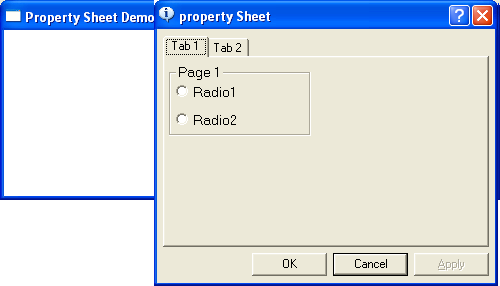
The following short program displays a property sheet containing two pages when the user right-clicks. The first page responds to a radio button click by displaying an associated message box. The second page is for display purposes only. Although this simple demonstration does not set any actual properties, it illustrates how to create a property page template.
A property sheet can also be used to create a wizard. A wizard consists of a series of dialog pages that guide the user through a sequence of steps or options.
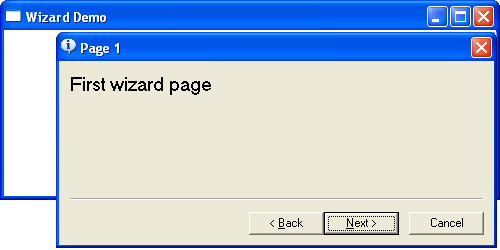
The following short program displays a simple wizard containing three property pages. Right-clicking anywhere in the window initiates the wizard.
Dialog-Based Applications
A dialog-based application is a Windows application in which the main window is a dialog box rather than a standard application window. This approach simplifies development by allowing controls such as buttons, edit boxes, check boxes, and list boxes to be placed visually on the window using the Resource Editor provided by the development environment.
The behaviour of the dialog box is controlled by a dialog procedure, which processes messages generated by the dialog box and its controls. For example, the dialog procedure can respond to button clicks, edit box input, and other user interactions.
Dialog-based applications generally require less code than traditional Win32 applications because much of the window creation and message handling is managed by the Windows dialog manager. As a result, they are particularly well suited to small utilities, configuration programs, and applications with relatively simple user interfaces.
Although dialog-based applications are relatively easy to develop, they are generally less flexible than traditional frame-window applications and are therefore best suited to straightforward applications.
Example
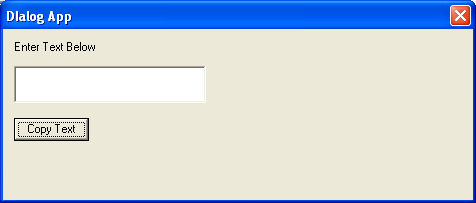
The following example demonstrates a simple dialog-based application. The main window is implemented as a dialog box containing an edit box, a button, and a static text control. The user enters text into the edit box and clicks the button to change the title (caption) of the dialog box to the text entered.
This example illustrates how a dialog procedure processes control events and updates the dialog box in response to user actions.